Sign in with Telegram
Start by logging into MemFee with Telegram so your community can be connected to the MemFee admin console.
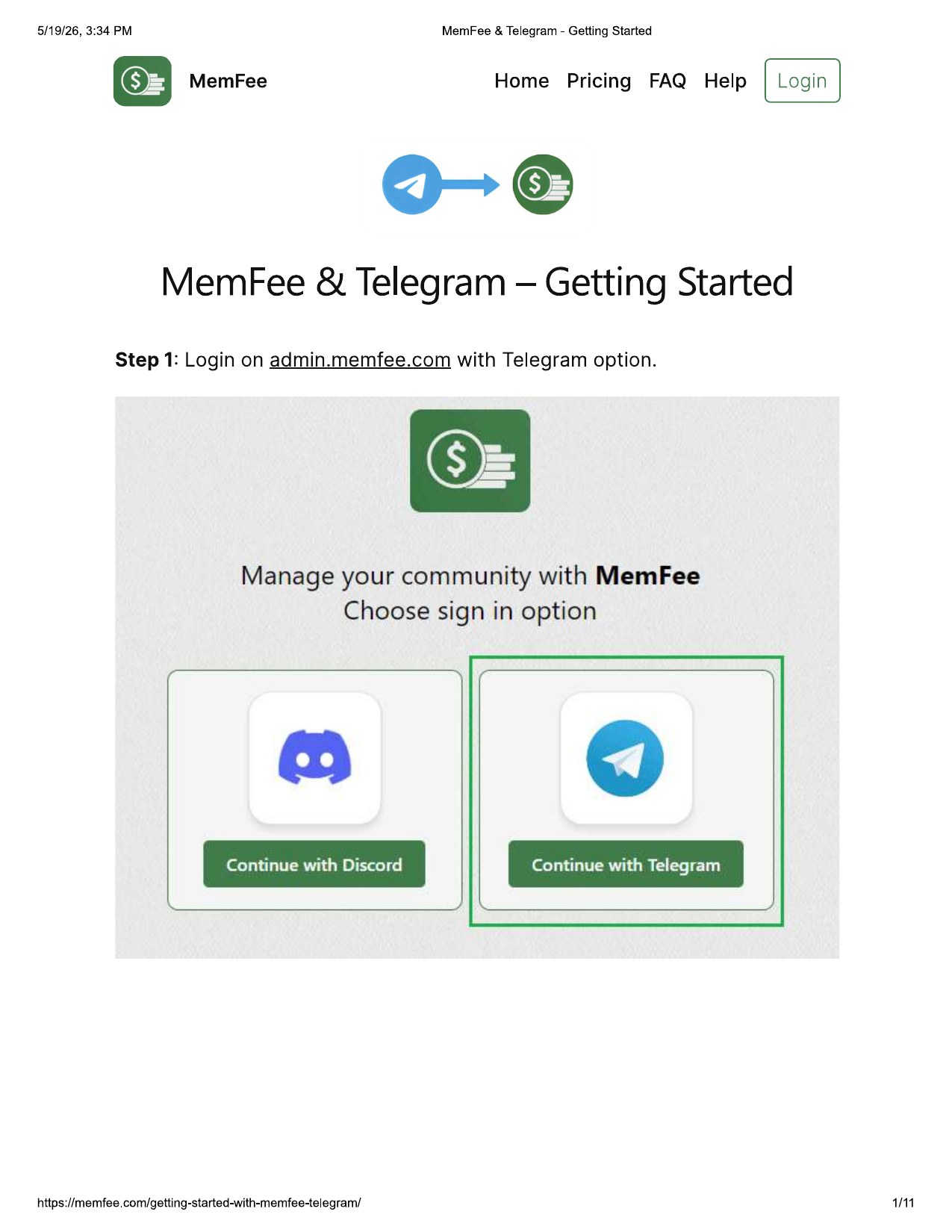
Authorize the Telegram request
Enter your phone number in international format, then confirm the sign-in request in the Telegram app.
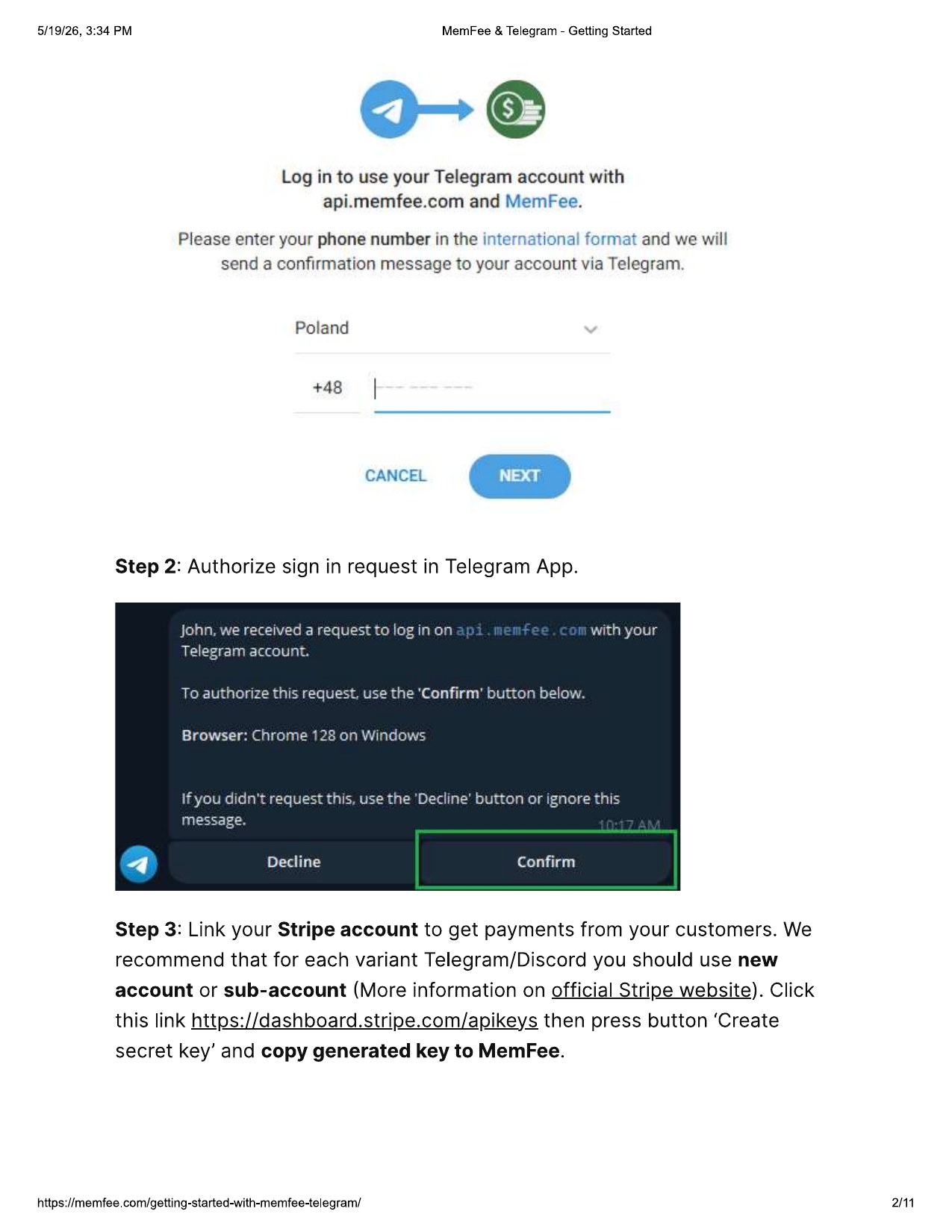
Connect Stripe
Link Stripe to receive payments from your customers. MemFee recommends that each variant - Telegram, Discord, or another setup - uses its own Stripe account.
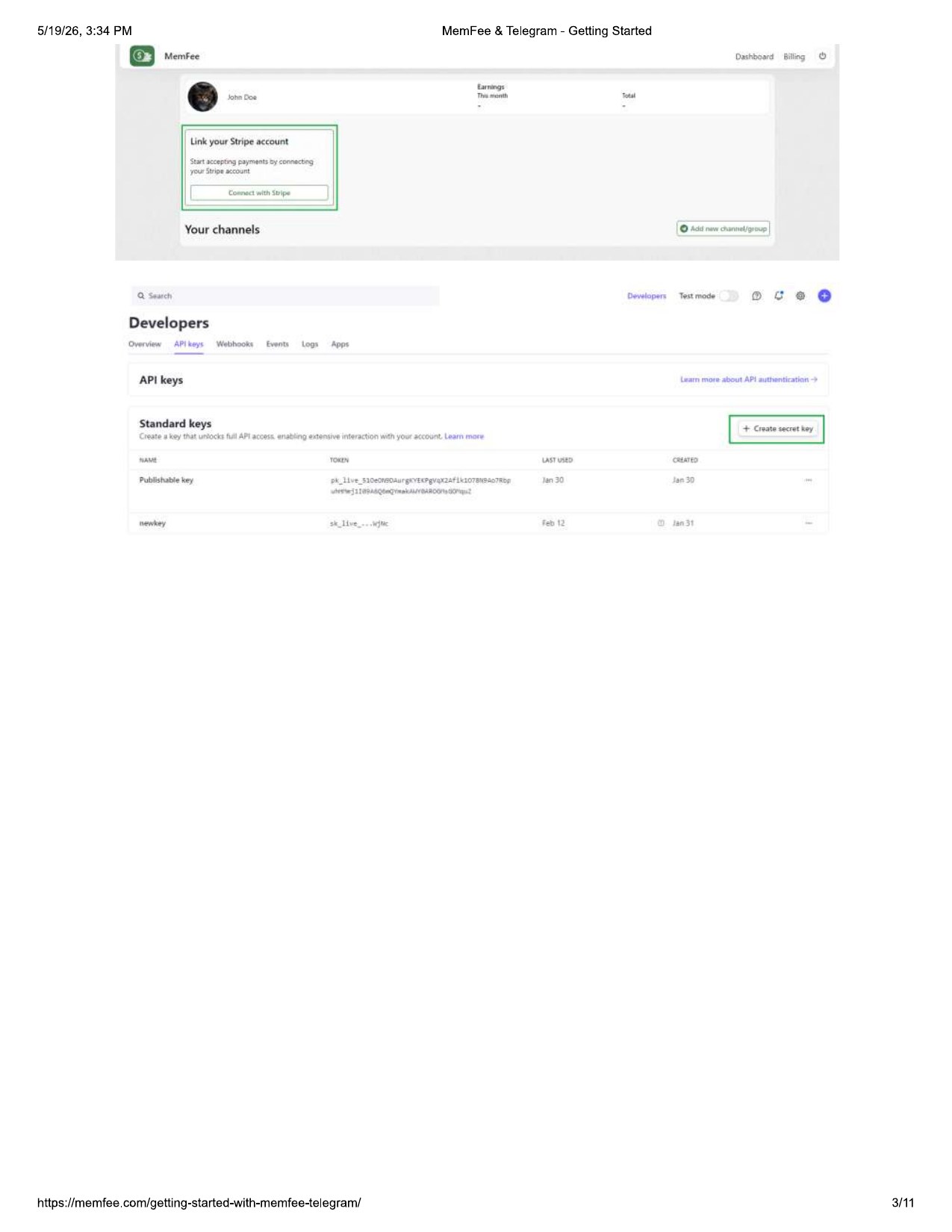
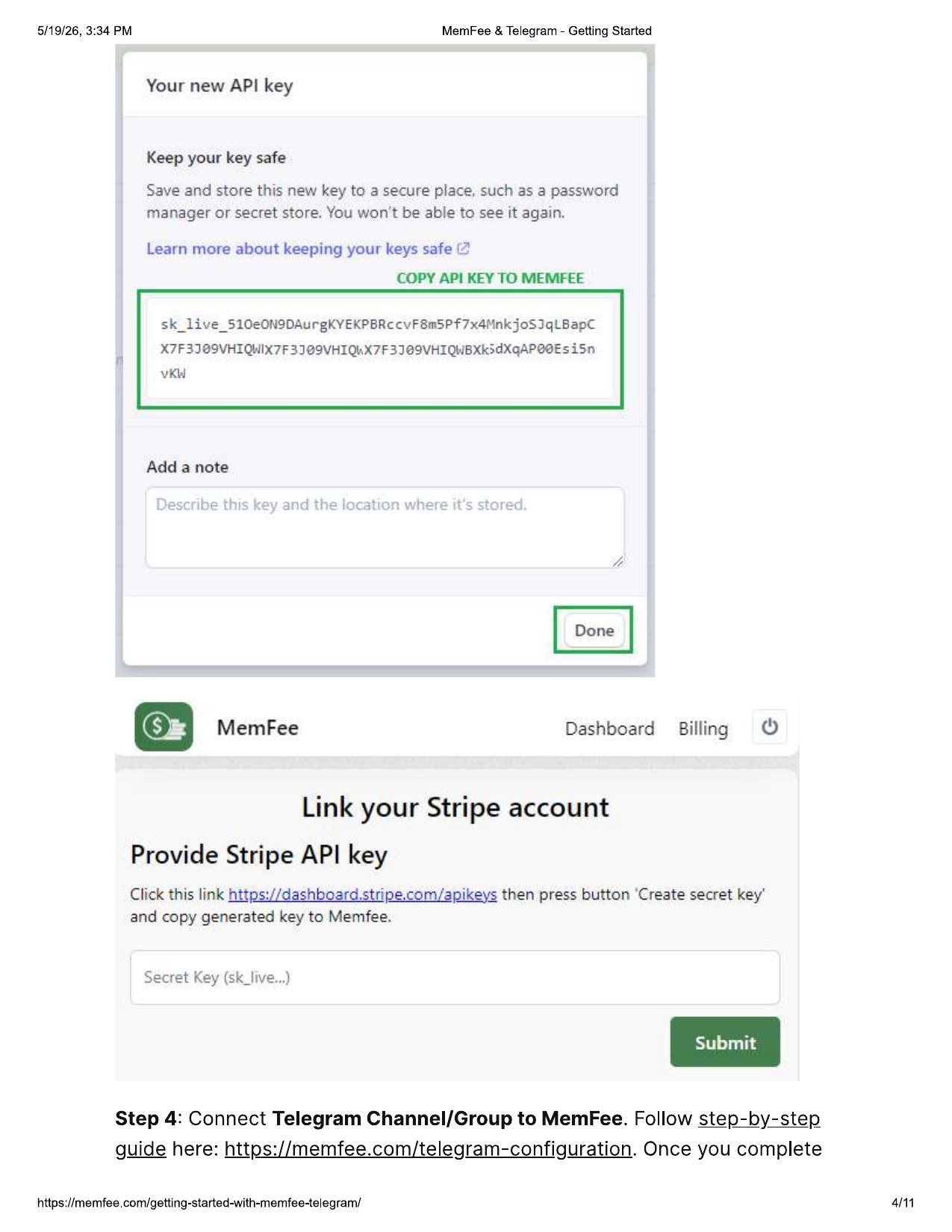
Create and paste your Stripe API key
Open Stripe API keys, create a secret key, copy the generated key, paste it into MemFee, and submit it.
Connect your Telegram Channel or Group
After Stripe is linked, connect the Telegram Channel or Group you want to monetize, then complete the community information shown to customers.
Connect the Channel or Group to MemFee
Follow the Telegram configuration guide to add the MemFee bot. Once the required Telegram setup is complete, your Channel or Group will appear in MemFee.
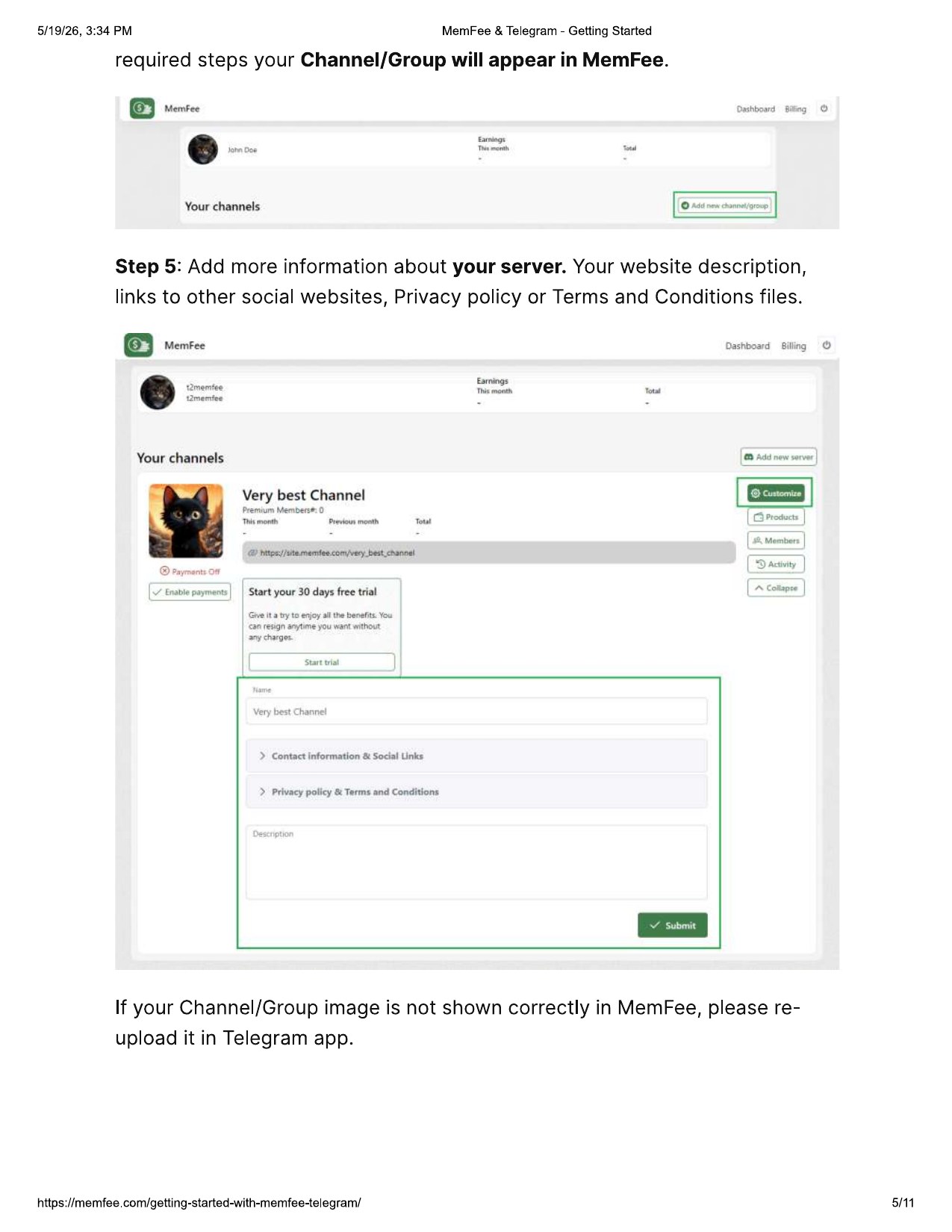
Add your server information
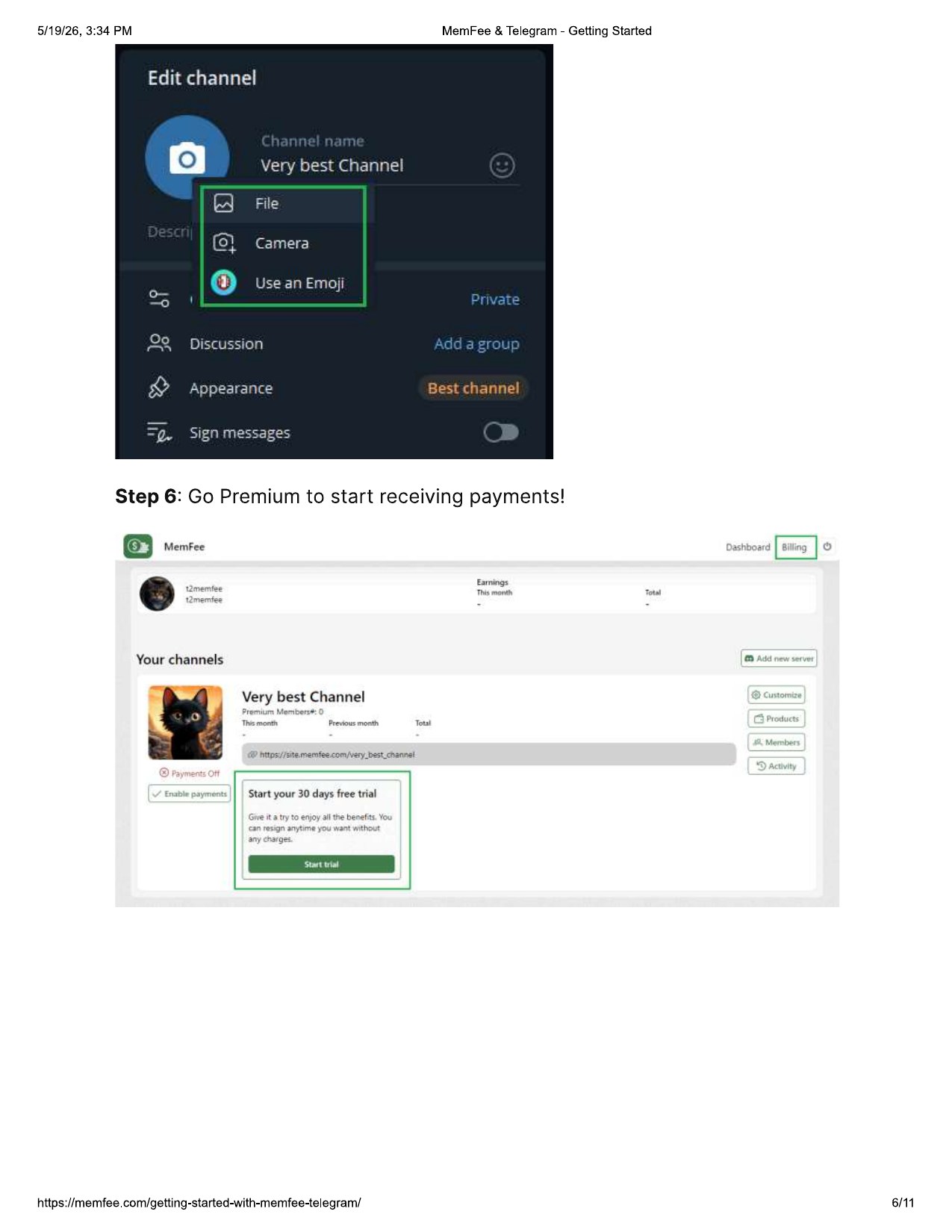
Add your website description, social links, privacy policy, terms and conditions, and description. If the image is not shown correctly in MemFee, re-upload it in Telegram.
Go Premium
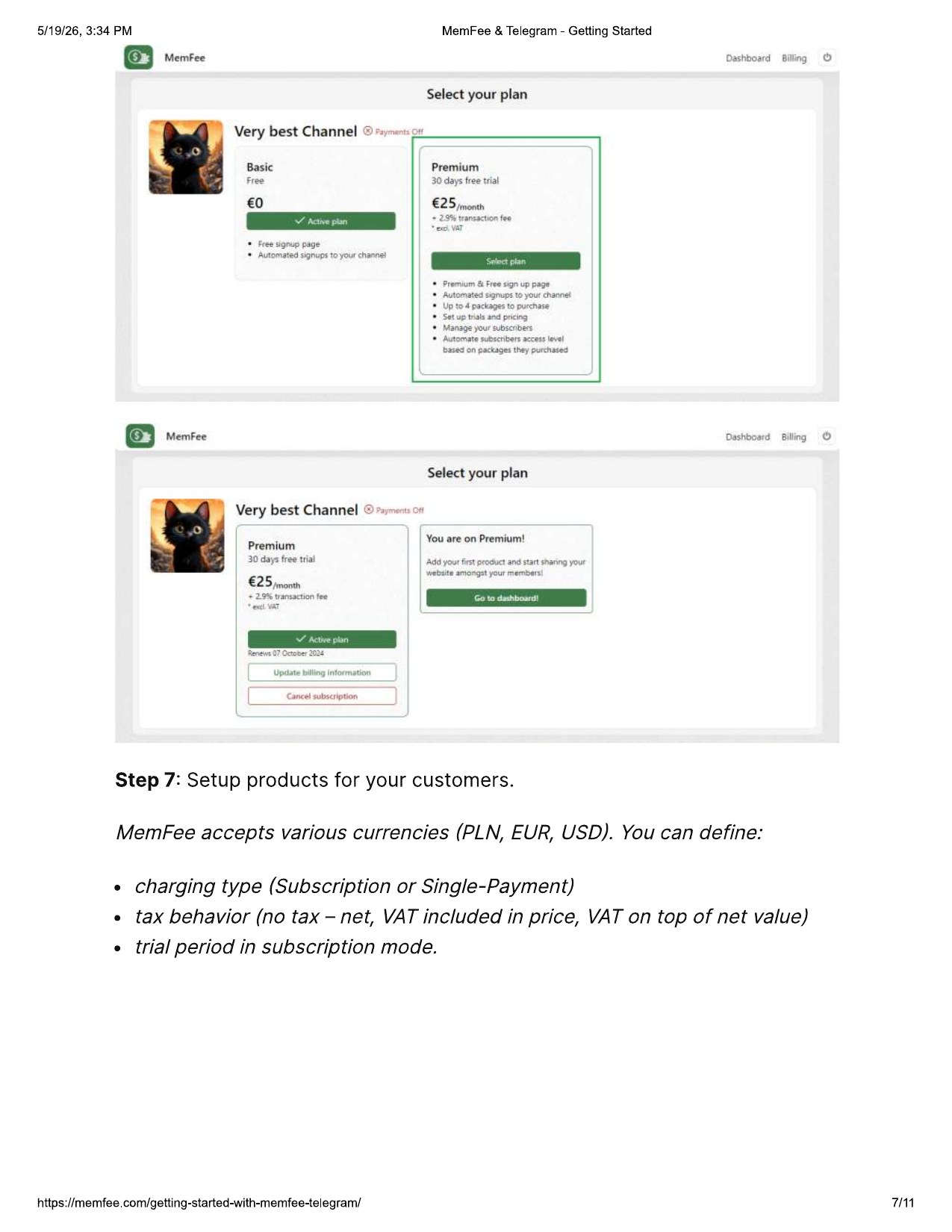
Activate Premium so your community can start receiving payments through MemFee.
Start the Premium trial
Open billing, choose the Premium plan, and start your trial to unlock paid server management features.
Create products for your customers
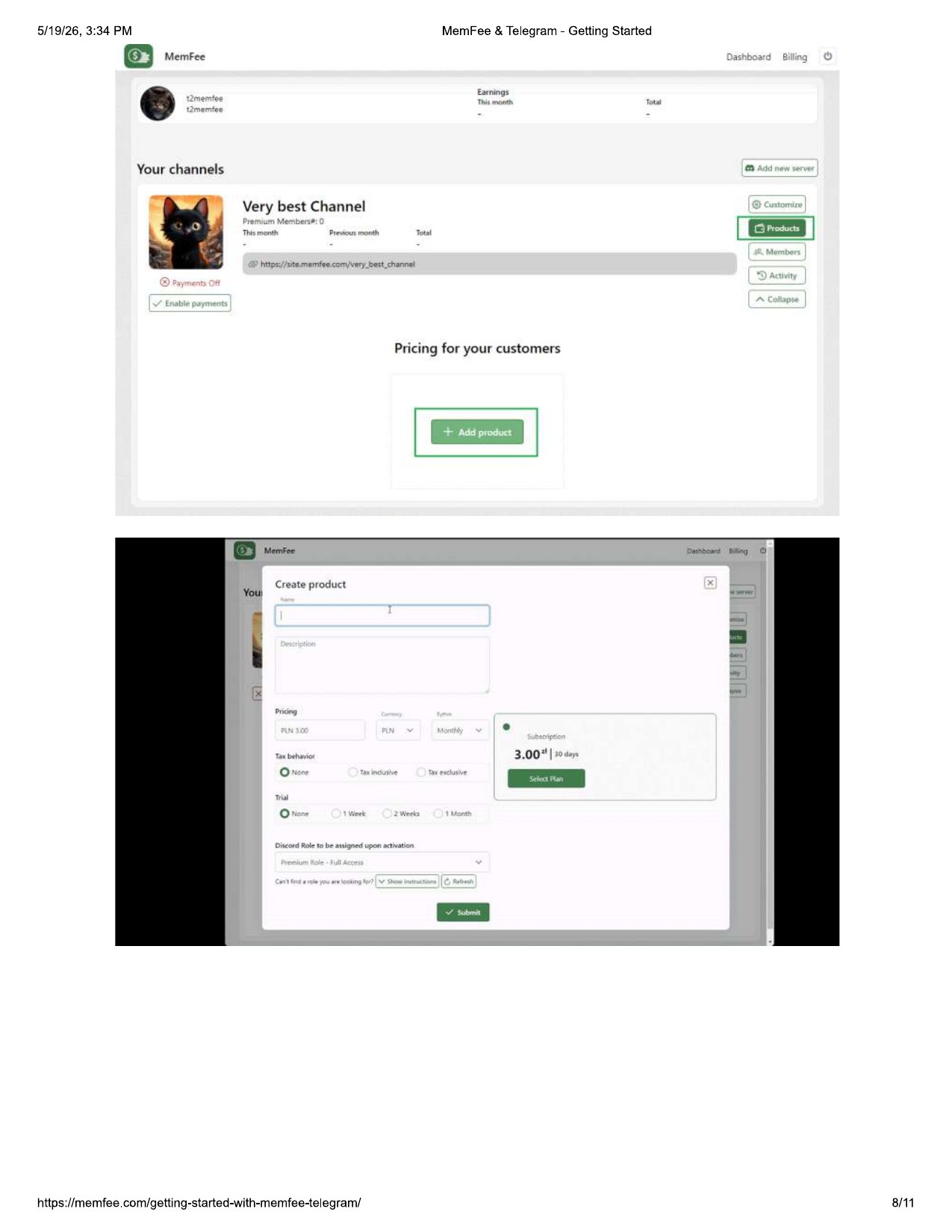
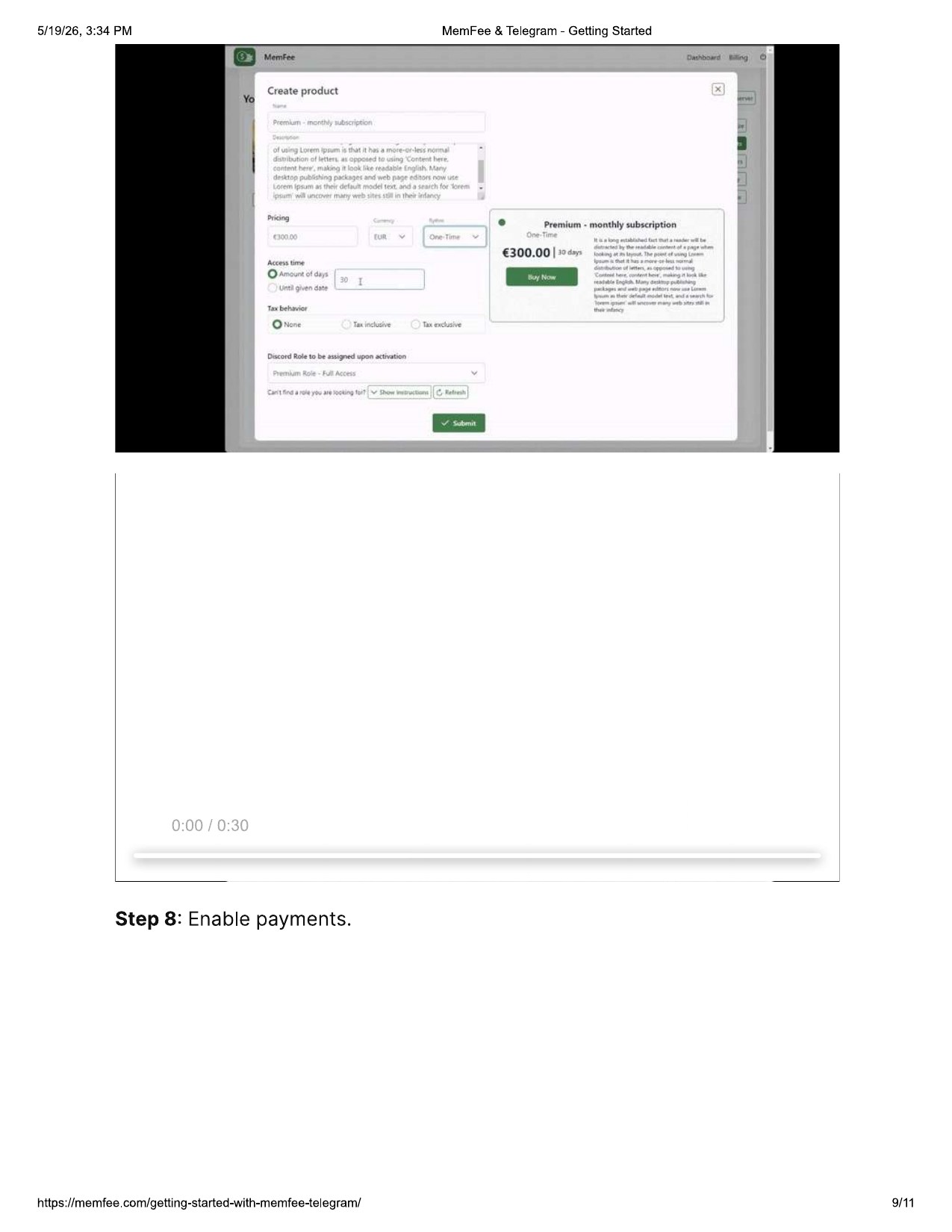
Define the products your members can buy. MemFee accepts PLN, EUR, and USD.
Set pricing and access rules
Click Add product, then configure the offer details customers will see.
- Charging type: subscription or single payment.
- Tax behavior: no tax, net VAT included in price, or VAT added on top of net value.
- Trial period: optional for subscription mode.
Enable payments and share your page
Turn payments on, copy your MemFee website link, and share it with your Telegram members.
Enable payments
Use the Enable payments control in the MemFee dashboard once your products are ready.
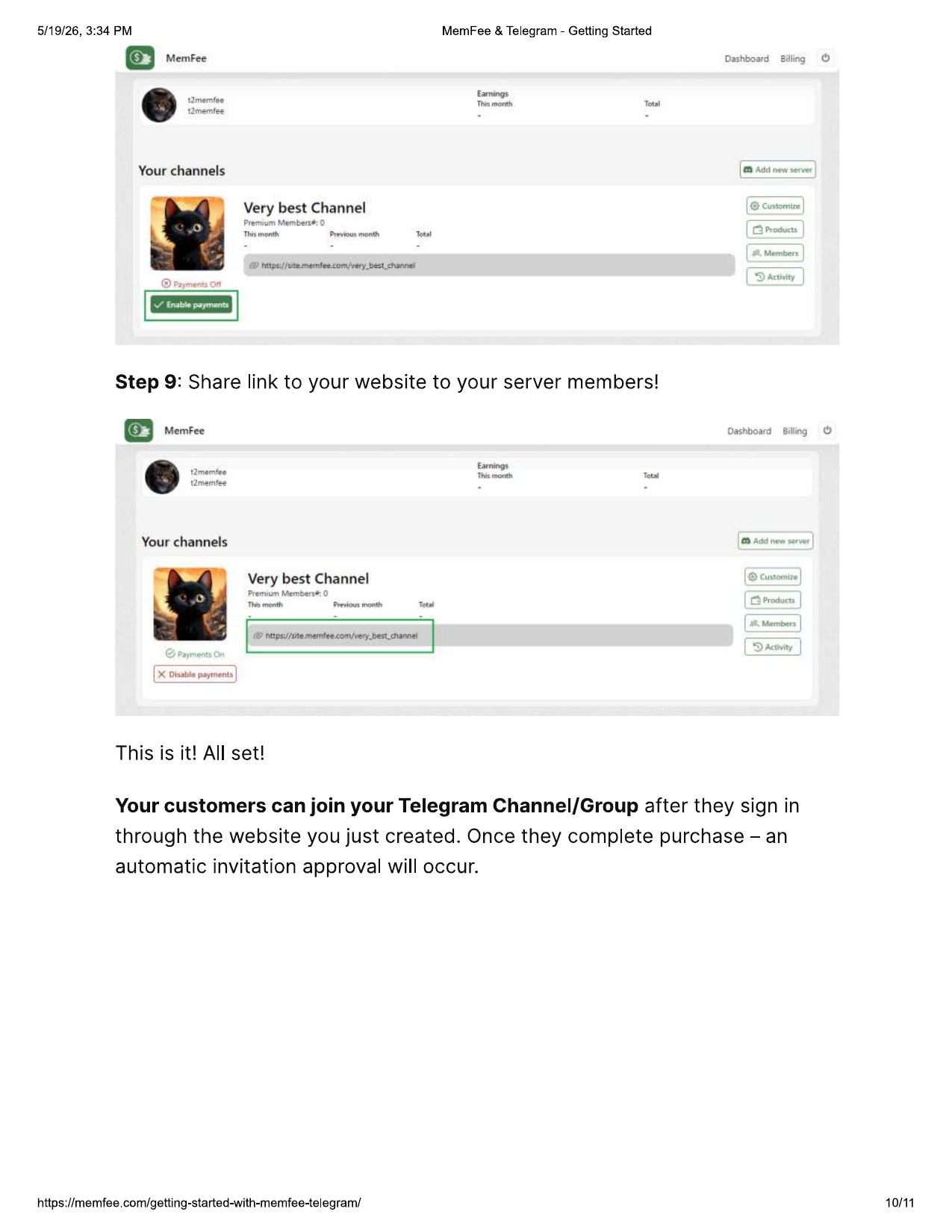
Share the link with members
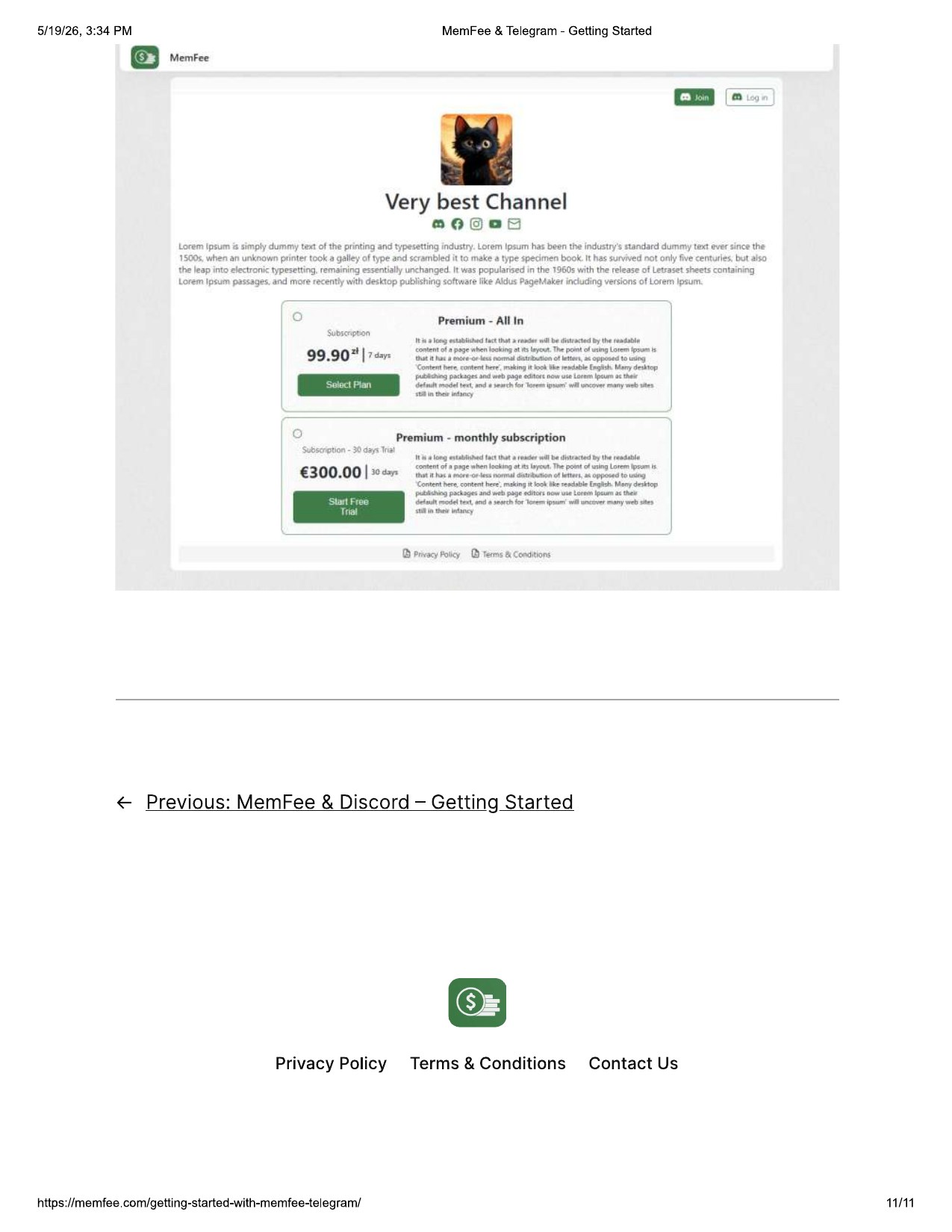
Copy the website link from MemFee and share it with your server members. Customers can join your Telegram Channel or Group after they sign in through your website, purchase a product, and receive automatic invitation approval.
Ready to launch your Telegram membership?
Open the MemFee admin console, confirm your products and payments, then share your community purchase link.
Open MemFee Admin